The Divi author box shortcode is an easy way to display your editor’s photo and name on blog posts. In my YouTube tutorial, I explain how to set it up using simple PHP and CSS. You don’t need any extra plugins to make it work.
With the Divi author box shortcode, you can add a personal touch to every post. It helps readers connect with the person behind the content and makes your site look more professional.
To start, paste the PHP code into your Code Snippets plugin or your theme’s functions.php file. Then, add the optional CSS to style the author section. After that, insert the shortcode [author_box] into your Divi Theme Builder layout.
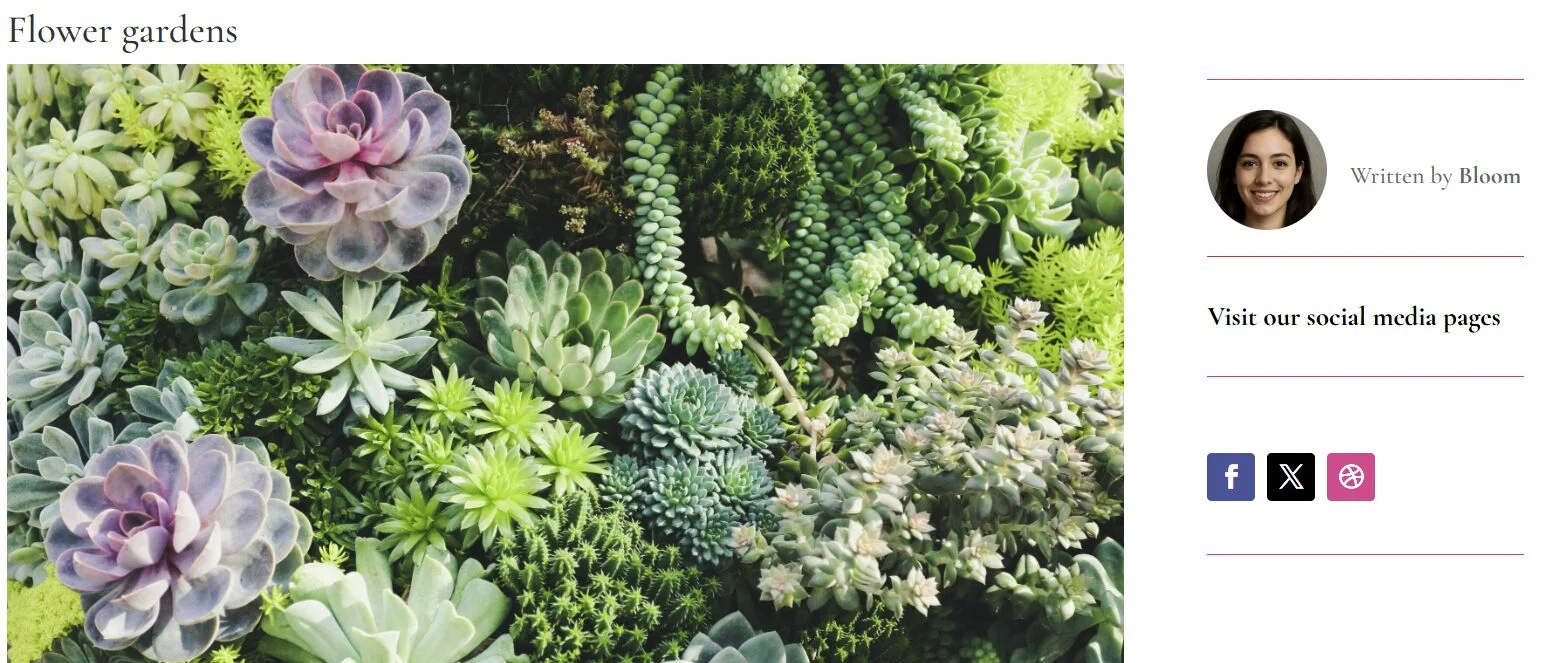
Your author box will now appear automatically under each post. It shows the author’s profile image and name in a clean and modern layout. The CSS adds a soft top border, a round photo, and a neat alignment that fits perfectly with Divi’s design.
Using this Divi author box shortcode is a small change with a big impact. It improves your blog’s design, adds credibility, and gives your readers a reason to trust your content.
If you’re new to Divi, explore its features on the Elegant Themes website. For a full video guide, watch my YouTube tutorial where I walk through each step of adding and styling the shortcode.
Try it today and make your Divi blog posts more personal, engaging, and professional.
PHP CODE
function custom_author_box() {
    ob_start();
    ?>
    <div class="custom-author-box">
        <div class="author-avatar">
            <?php echo get_avatar(get_the_author_meta('ID'), 96); ?>
        </div>
        <div class="author-name">
            <p>Written by <strong><?php the_author(); ?></strong></p>
        </div>
    </div>
    <?php
    return ob_get_clean();
}
add_shortcode('author_box', 'custom_author_box');
CSS CODE (optional)
.custom-author-box {
  display: flex;
  align-items: center;
  margin-top: 30px;
  padding-top: 20px;
  border-top: 1px solid #fb3365;
}
.custom-author-box .author-avatar {
  margin-right: 15px;
}
.custom-author-box img {
  border-radius: 50%;
  width: 80px;
  height: 80px;
}
.custom-author-box .author-name {
  font-size: 16px;
}