ZORA WEB DESIGN
Create Stunning Divi Button Hover Animations
Style Divi buttons with lightweight CSS hover effects like wave, pulse, diagonal expand, neon glow, and more.
WATCH ON YOUTUBE →How to Style Your Divi Theme Buttons with Hover Animations
Download Divi Button Animations JSON
Watch the video tutorial on YouTube
Divi button hover animations are an easy win for engagement. With a few CSS classes, your calls-to-action feel lively, modern, and deliberate. Moreover, you keep full control in the Button Module editor.
In this tutorial, you’ll apply ready-made effects to any Divi button. First, import or copy the CSS. Then, assign a class name like wave-button, pulse, or expand-diagonal to the button. Finally, preview the result and refine colors, timing, and sizing to match your brand.
Part 1: Style One Button First
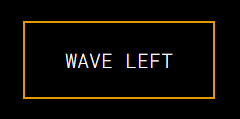
To start, use the Wave Button as your base. This effect slides a color wave across the button on hover. As a result, your primary CTA stands out without distracting from the layout. Additionally, you can change the wave color and speed for a perfect fit.
Part 2: Add the CSS in Divi
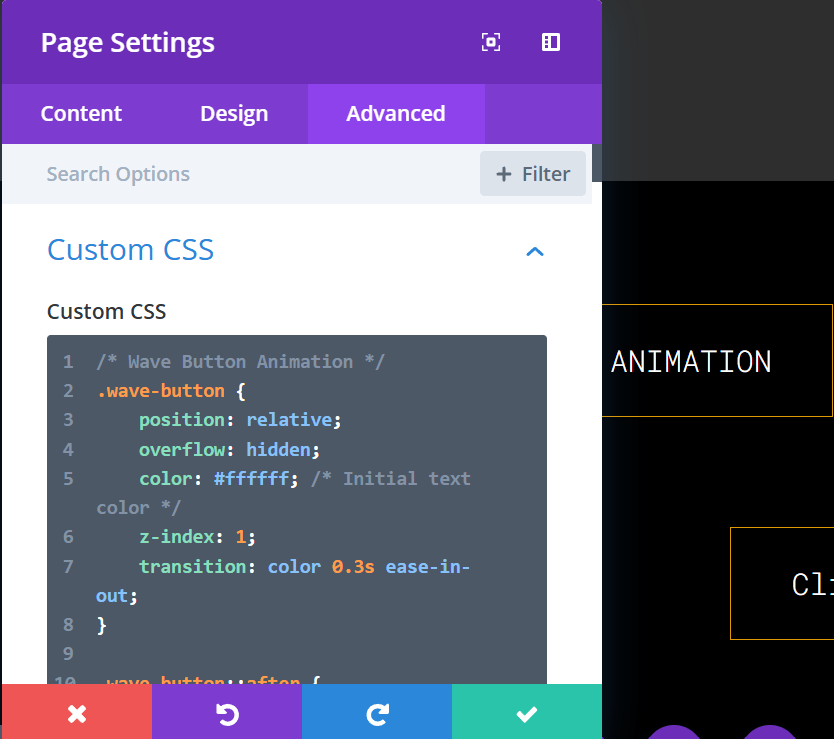
Next, open Page Settings → Advanced → Custom CSS. Paste the CSS for the effect you want. After saving, test the button on the front end. If needed, adjust timing, for example 0.6s, for a snappier feel. Likewise, verify contrast so text remains readable.
Part 3: Assign a Class to the Button
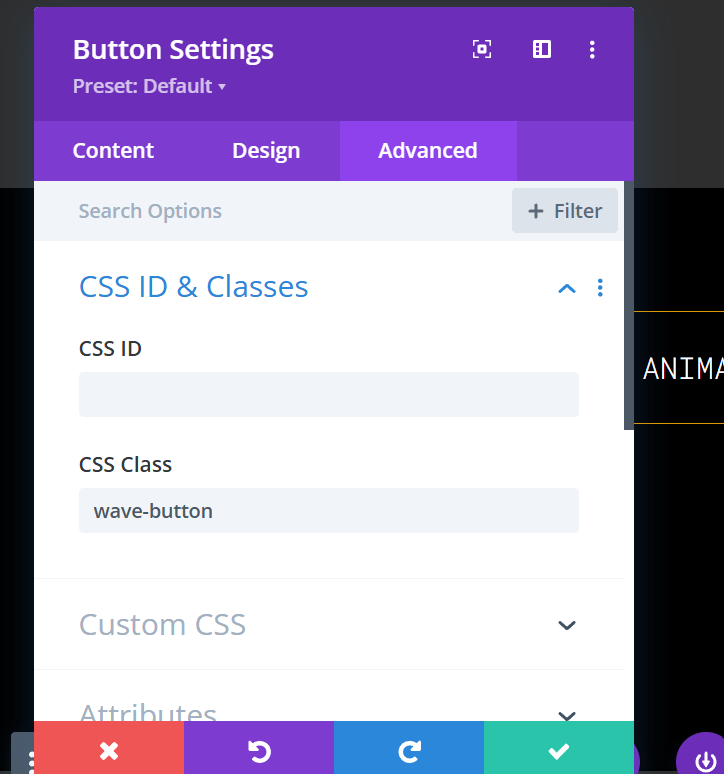
Then open your Button Module → Advanced → CSS Class. Enter the class that matches the effect, for example wave-button, pulse, or expand-vertical. Save and exit. Subsequently, hover the button to confirm the animation triggers cleanly.
Additional Effects You Can Use
Beyond the basic wave, try these Divi button hover animations to diversify your CTAs:
- Wave with Icon (
wave-button1) — A subtle slide that pairs well with iconography. - Wave Right-to-Left (
wave-button-rtl) — Motion originates from the right for visual variety. - Pulse (
pulse,pulse-contract) — Gentle scale up or down to signal interactivity. - Diagonal Expand (
expand-diagonal,expand-diagonal-top-left) — Color grows across the button at an angle. - Vertical Expand (
expand-vertical) — A smooth sweep from top to bottom. - Box Shadow Variants (
box-shadow,box-shadow-left-bottom) — Offset glow that reinforces depth. - Neon Glow (
neon-glow) — A bold highlight for high-impact CTAs. - Horizontal Expand (
expand-horizontal) — Fills from center to edges for a crisp reveal.
Importantly, these effects are CSS-only. Therefore, they’re lightweight, responsive, and compatible with standard Divi layouts.
Pro Tips for Best Results
- Disable button icons. Otherwise, some animations may not display as intended.
- Keep labels short. Consequently, the effect remains smooth on smaller screens.
- Test contrast. In addition, ensure sufficient color contrast for accessibility.
- Mix strategically. For example, reserve bolder effects for primary CTAs and use subtler ones for secondary actions.
Why These Animations Help
Well-timed motion guides attention. Consequently, visitors notice key actions like Buy Now, Sign Up, or Learn More. Furthermore, tasteful micro-interactions elevate brand polish without adding heavy scripts or plugins. In short, Divi button hover animations improve clarity, focus, and conversions.
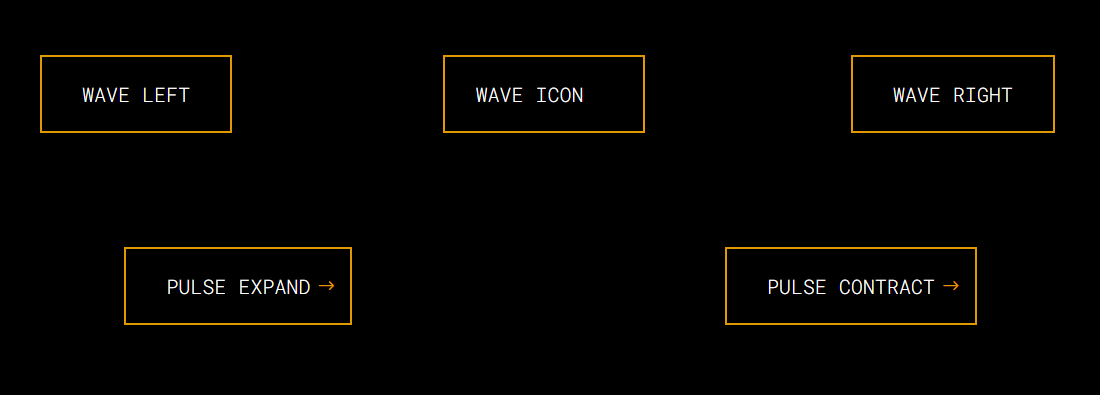
Part 1: Styling the Button
We'll use the Wave Button Animation as an example for this tutorial. This animation makes a vibrant wave of color slide over the button when hovered.
Part 2: Adding the CSS to Your Divi Theme
- Navigate to your page settings.
- Go to Page settings > Advance > Custom CSS.
- Paste the CSS code into the Custom CSS box and save your changes.
Copy CSS to clipboard
Class name: wave-button
/* Wave Button Animation */
.wave-button {
position: relative;
overflow: hidden;
color: #ffffff;
z-index: 1;
transition: color 0.3s ease-in-out;
}

.wave-button::after {
content: "";
position: absolute;
top: 0;
left: -100%;
width: 100%;
height: 100%;
background-color: #e09900;
transition: left 0.6s ease-in-out;
z-index: -1;
}

.wave-button:hover::after {
left: 0;
}

.wave-button:hover {
color: #ffffff;
}
Part 3: Assign the CSS Class to Your Button
- Open the button Settings on the page.
- Edit the button and navigate to the Advanced > CSS Class field.
- Add the class
wave-buttonto the CSS Class field and save your changes.
wave-button
Other Animations CSS and Class
Wave Button with icon
Class name: wave-button1
/* Wave Button1 */
.wave-button1 {
position: relative;
overflow: hidden;
background-color: transparent;
display: inline-flex;
align-items: center;
justify-content: center;
color: #ffffff;
z-index: 1;
transition: background-color 0.3s ease, color 0.3s ease;
}

.wave-button1::after {
content: "";
position: absolute;
top: 0;
bottom: 0;
right: -40px;
width: 40px;
background-color: #e09900;
transition: all 0.6s ease-in-out;
z-index: -1;
opacity: 0;
}

.wave-button1:hover {
background-color: #e09900;
color: #ffffff;
}

.wave-button1:hover::after {
right: 0;
opacity: 1;
}

.wave-button1 {
position: relative;
z-index: 1;
}
Wave Button Animation (Right to Left)
Class name: wave-button-rtl
.wave-button-rtl {
    position: relative;
    overflow: hidden;
    color: #ffffff;
    z-index: 1;
    transition: color 0.3s ease-in-out;
}

.wave-button-rtl::after {
    content: "";
    position: absolute;
    top: 0;
    left: 100%;
    width: 100%;
    height: 100%;
    background-color: #e09900;
    transition: left 0.6s ease-in-out;
    z-index: -1;
}

.wave-button-rtl:hover::after {
    left: 0;
}

.wave-button-rtl:hover {
    color: #ffffff;
}
Pulse (Expand)
Class name: pulse
/* Hover effect: Only apply scaling on hover */
.et_pb_button.pulse:hover {
transform: scale(1.1);
}

.et_pb_button.pulse:active {
transform: scale(1);
}
Pulse (Contract)
Class name: pulse-contract
.et_pb_button.pulse-contract {
    position: relative;
    overflow: visible;
    display: inline-block;
    transition: transform 0.4s ease-in-out;
}

.et_pb_button.pulse-contract:hover {
    transform: scale(0.9);
}

.et_pb_button.pulse-contract:active {
    transform: scale(1);
}
Diagonal (Bottom Top)
Class name: expand-diagonal
.expand-diagonal {
    position: relative;
    overflow: hidden;
    color: #ffffff;
    z-index: 1;
    transition: color 0.3s ease-in-out;
}

.expand-diagonal::after {
    content: "";
    position: absolute;
    top: 50%;
    left: 50%;
    width: 20%;
    height: 20%;
    background-color: #e09900;
    transition: width 0.6s ease-in-out, height 0.6s ease-in-out, top 0.6s ease-in-out, left 0.6s ease-in-out;
    z-index: -1;
}

.expand-diagonal:hover::after {
    width: 200%;
    height: 200%;
    top: 0;
    left: 0;
}

.expand-diagonal:hover {
    color: #ffffff;
}
Diagonal (Top Bottom)
Class name: expand-vertical
.expand-vertical {
    position: relative;
    overflow: hidden;
    color: #ffffff;
    z-index: 1;
    transition: color 0.3s ease-in-out;
}

.expand-vertical::after {
    content: "";
    position: absolute;
    top: -100%;
    left: 0;
    width: 100%;
    height: 100%;
    background-color: #e09900;
    transition: top 0.6s ease-in-out;
    z-index: -1;
}

.expand-vertical:hover::after {
    top: 0;
}

.expand-vertical:hover {
    color: #ffffff;
}
Box Shadow (right)
Class name: box-shadow
.box-shadow {
position: relative;
overflow: hidden;
color: #ffffff;
background: #1a1a1a;
border: 2px solid transparent;
box-shadow: 10px 10px 0px 0px rgba(224, 153, 0, 0);
transition: box-shadow 0.6s ease-in-out, color 0.3s ease-in-out;
}

.box-shadow:hover {
box-shadow: 10px 10px 0px 0px rgba(224, 153, 0, 0.8);
background: #e09900;
color: #ffffff;
}
Box Shadow (left)
Class name: box-shadow-left-bottom
.box-shadow-left-bottom {
    position: relative;
    overflow: hidden;
    color: #ffffff;
    background: #1a1a1a;
    border: 2px solid transparent;
    box-shadow: 10px 10px 0px 0px rgba(224, 153, 0, 0);
    transition: box-shadow 0.6s ease-in-out, color 0.3s ease-in-out;
}

.box-shadow-left-bottom:hover {
    box-shadow: -10px 10px 0px 0px rgba(224, 153, 0, 0.8);
    background: #e09900;
    color: #ffffff;
}
Diagonal Expand from Top-Left
Class name: expand-diagonal-top-left
.expand-diagonal-top-left {
    position: relative;
    overflow: hidden;
    color: #ffffff;
    z-index: 1;
    transition: color 0.6s ease-in-out;
}

.expand-diagonal-top-left::after {
    content: "";
    position: absolute;
    top: 0;
    left: 0;
    width: 20%;
    height: 20%;
    background-color: #e09900;
    transition: width 1.7s ease-in-out, height 1.7s ease-in-out, top 1.7s ease-in-out, left 1.7s ease-in-out;
    z-index: -1;
}

.expand-diagonal-top-left:hover::after {
    width: 200%;
    height: 200%;
    top: -50%;
    left: -50%;
}

.expand-diagonal-top-left:hover {
    color: #ffffff;
}
Neon Glow
Class name: neon-glow
.neon-glow {
    position: relative;
    overflow: hidden;
    color: #ffffff;
    background: #1a1a1a;
    border: 2px solid transparent;
    box-shadow: 0 0 0 rgba(224, 153, 0, 0);
    transition: box-shadow 0.6s ease-in-out, color 0.3s ease-in-out;
}

.neon-glow:hover {
    box-shadow: 0 0 15px rgba(224, 153, 0, 0.8), 0 0 30px rgba(224, 153, 0, 0.6);
    background: #e09900;
    color: #ffffff;
}
Horizontal Expand from Center
Class name: expand-horizontal
.expand-horizontal {
    position: relative;
    overflow: hidden;
    color: #ffffff;
    z-index: 1;
    transition: color 0.3s ease-in-out;
}

.expand-horizontal::after {
    content: "";
    position: absolute;
    top: 0;
    left: 50%;
    width: 0;
    height: 100%;
    background-color: #e09900;
    transition: width 0.6s ease-in-out, left 0.6s ease-in-out;
    z-index: -1;
}

.expand-horizontal:hover::after {
    width: 100%;
    left: 0;
}

.expand-horizontal:hover {
    color: #ffffff;
}
Important Note
The hover animations will work best if button icons are turned off in the Divi Button Module. If button icons are enabled, the hover animation may not display as intended.